5 Quick tips for MSSQL Management Studio
Five quick tips for SQL Server Management Studio that save time and boost productivity, from colour-coded environments to query shortcuts and line numbers.
 Shantoie Vorster · 5 min read
I know that Azure Data Studio is the shiny new toy that is on everyone’s mind, and if you haven’t heard of it, Eduard wrote a great post on it, you can read more here. But for many, MSSQLMS will be the tool they are stuck with for a while, or the tool of preference if you are a creature of habit. Let’s look at 5 quick tips that is sure to make your life easier.
Environment Colours
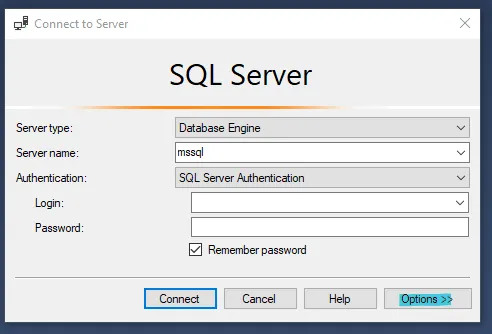
Have you ever confused dev with PROD and almost truncated that one table? OR have you accidentally inserted records into the wrong environment because you got confused with the 100 tabs that you need open to navigate? Fear no more. You can set the color for an environment. This can be done when connecting to a server.
Steps:
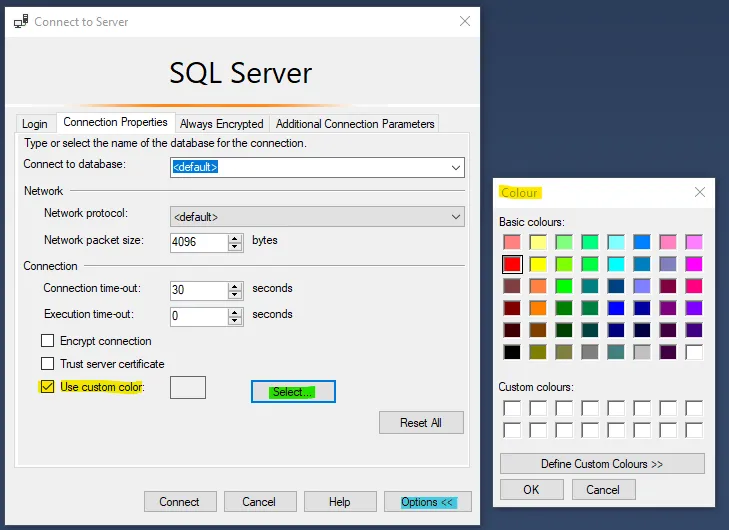
- On the connection manager select the options button
- Select “Use Custom Color”
- Click the “Select…” button to select the custom color for the server. I like Red for Prod.
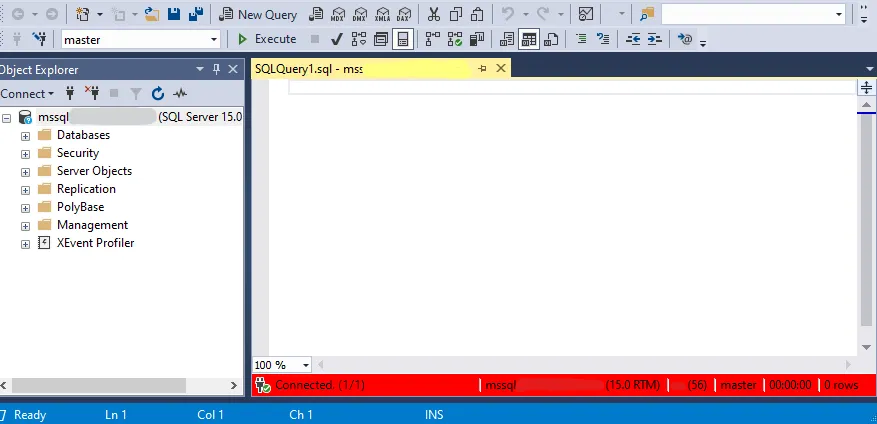
- Then click Connect like usual. You will now see that the queries you open that is connected to this server has their bottom bar in the selected color.
The above can be seen in the screenshots here:
I also made a YouTube video on this, please note it’s a short, so best viewed on your phone.
Multi line formatting and editing
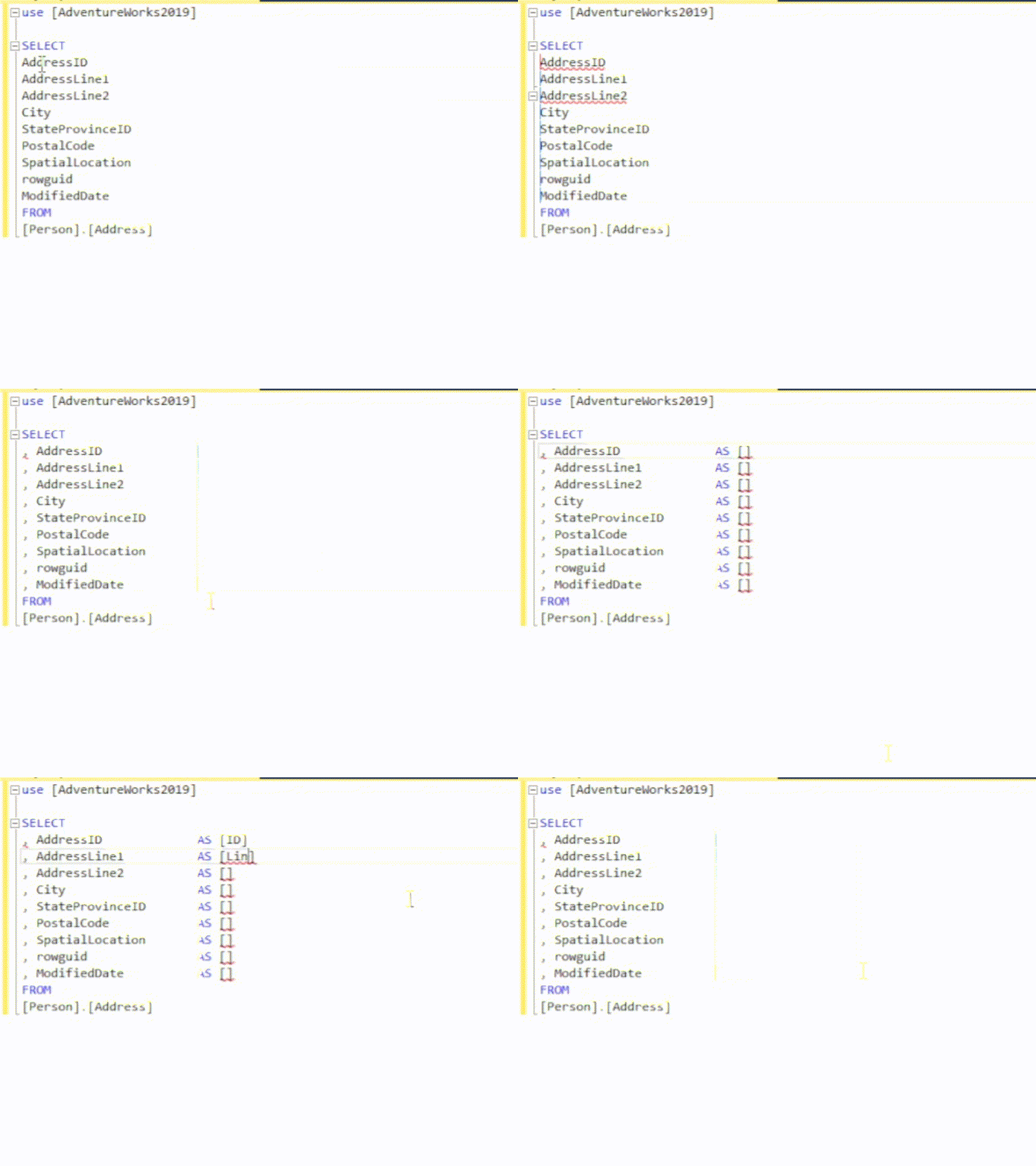
A feature that has been implemented in many tools, not just SQLMS, is multi line formatting and editing. I find this feature extremely useful, to the point that if a tool does not support it, my productivity takes a hit. So how does it work? Well for MS SQLMS its rather simple. Simply hold SHIFT + ALT (on windows) and press the up or down arrow keys to navigate to the position you want to edit. This will allow you to highlight multiple line positions. Now simply type or edit what you need. The below gif shows what I mean:
There is also a YouTube video available for this if you need a better example.
Table Statistics
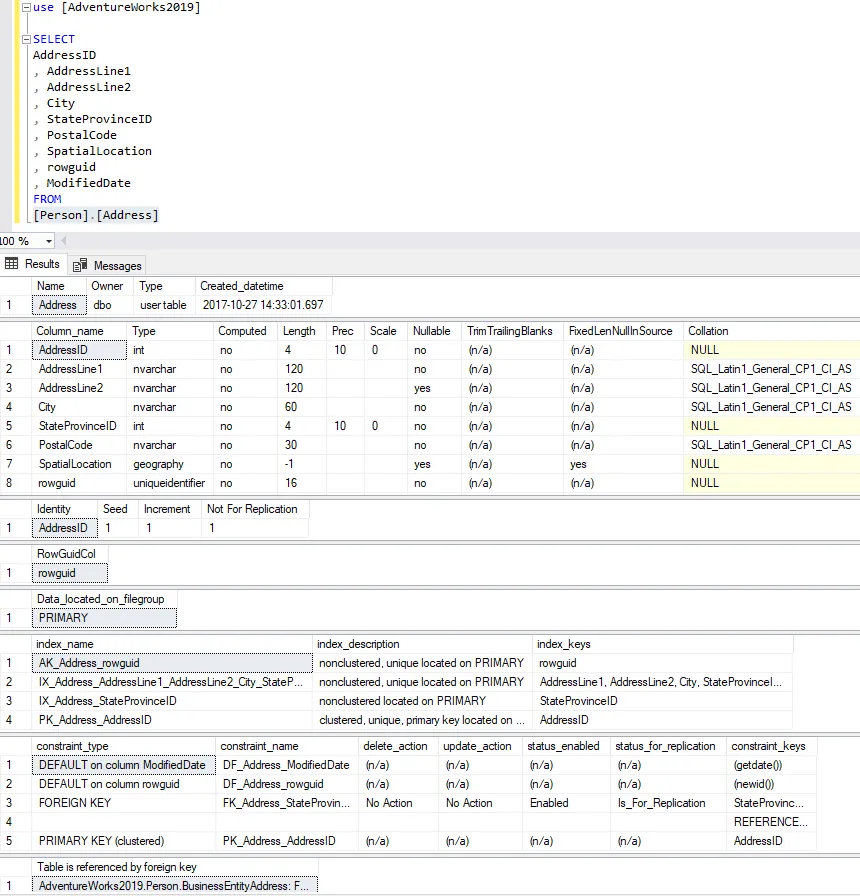
Table statistics are great for viewing more information on tables. This seems obvious, but I commonly use them to quickly get columns, or to view the indexers on tables when writing more complicated queries that seems a bit slow for some reason…
To view table statistics, be sure that you are working in the environment of the specific table (that query, you can either select the data base form the dropdown or use the USE command) Then select the table you need to view statistics on (with the schema) and hit Shift + F1.
There is also a YouTube video available for this if you need a better example.
Query Shortcuts
Shortcuts are possibly one of my favorites and most used features of MSSQL Management Studio. I did a YouTube short on this one that might be of benefit to you.
In essence, you can set commands such as “SELECT* FROM” or “SP_HELPTEXT” to key bindings (such as Shift + 1). Once the key binding is pressed, the command is executed on the selected objects or text.
To set shortcuts, do the following:
Steps:
- On the Menu, navigate to Tools > Options
- In Environment, under the Keyboard section, select Query Shortcuts
- On here, set the command or stored procedure to execute, note that it will automatically execute whatever stored proc is set, so you don’t have to put in EXEC. You can also add a small piece of script such as “SELECT * FROM ”
- Click OK
- You will need to open a new query window in order for this to take effect
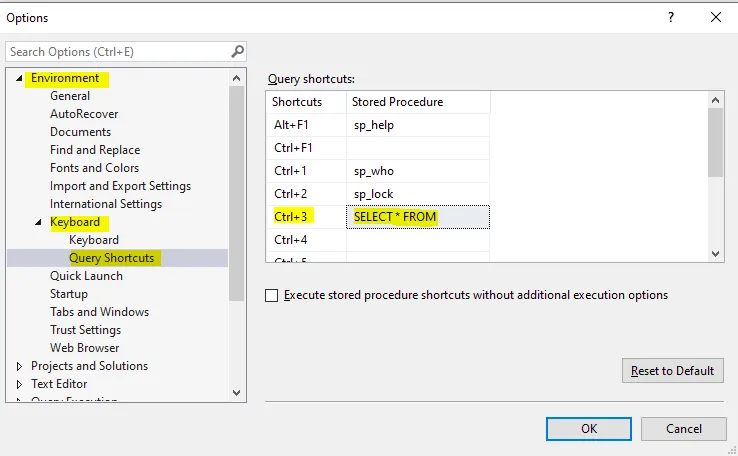
Now that the Query Shortcut is set, try it on a new query window:
Select the table you need to have a view into, and hit CTRL+ 3 (or whatever you bound your command to)
![Highlighting [Person].[Address] and pressing Ctrl+3 returns the rows of the table](/_astro/image-30.Du1GiDbc_GD5l4.webp)
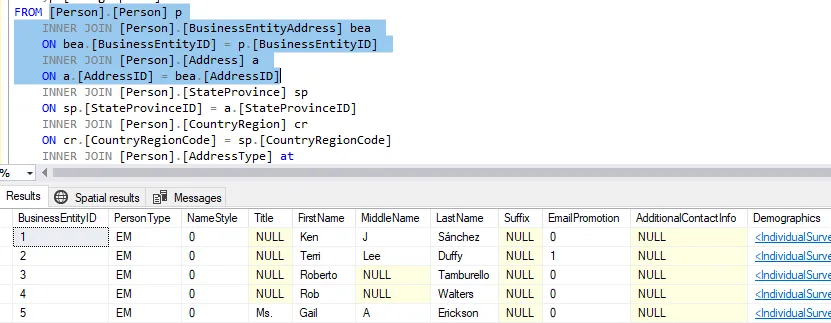
You can also use it to debug joins or check that you are joining as expected:
Line Numbers
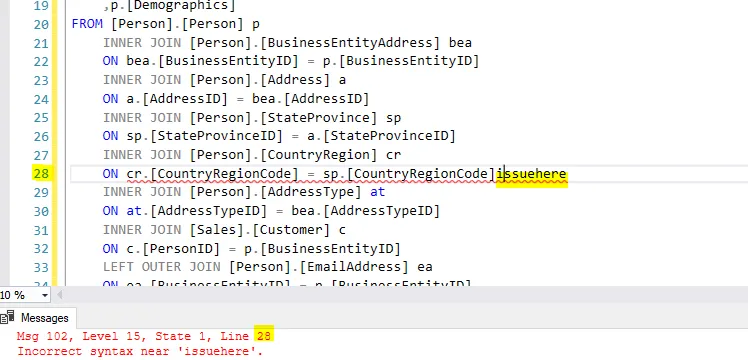
Something, that I feel, should be on by default is Line numbers. Many times you will see an error on Line number X, and think, oh no. And a naiver and younger me would go… SQL MS doesn’t seem to have line numbers, sigh let me copy it into Notepad++. OK, now that you got a laugh out of dumb young me, I can assure you that MSSQL Management Studio does have line numbers. You just need to turn it on.
Steps:
Here is a quick step by step to get this done:
- On the Menu, navigate to Tools > Options
- In Environment, under the Text Editor section, open All Languages and then General
- Tick the Line numbers box
- Click OK
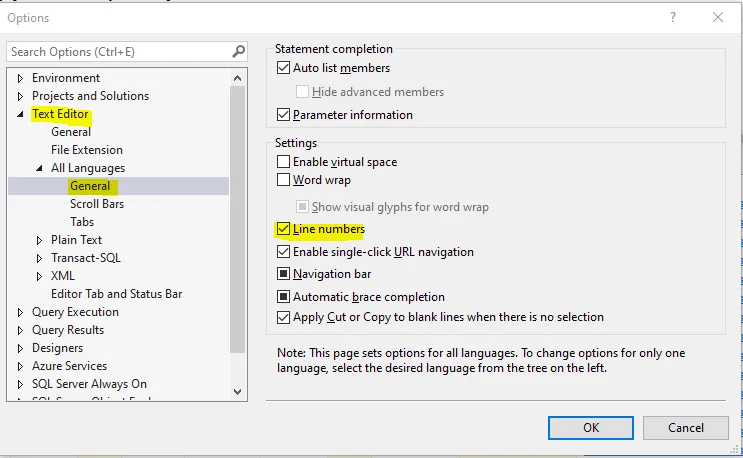
And then, presto, you have line numbers:
Go give these a try. Got any other MSSQL Management Studio tips, or any MSSQL Tips you would like to share? Share them on Twitter with the #SQLMadeEasy tag and be sure to @ me. (@E_ID10T)