Azure Data Studio My New Muse (Part 1)
A brief look at Azure Data Studio, followed by tips to speed up your SQL coding with custom snippets and query shortcut keys.
 Eduard Hoffman · 4 min read
What is Azure Data Studio?

Azure Data Studio is Microsoft’s new SQL Server Management studio that is solely focused on development. Azure Data Studio does not have all the functions of SQL Server Management studio and it does not seem like they are going to change that at the time of writing this. However, the features and tools it provides are amazing. We are going to look at some of them in this post.
SQL Snippets
These functions are similar to SSMS (SQL Server management Studio) Boost’s auto replacements and are quite easy to setup.
In Azure Data Studio hit Ctrl + Shift + P and type snippets
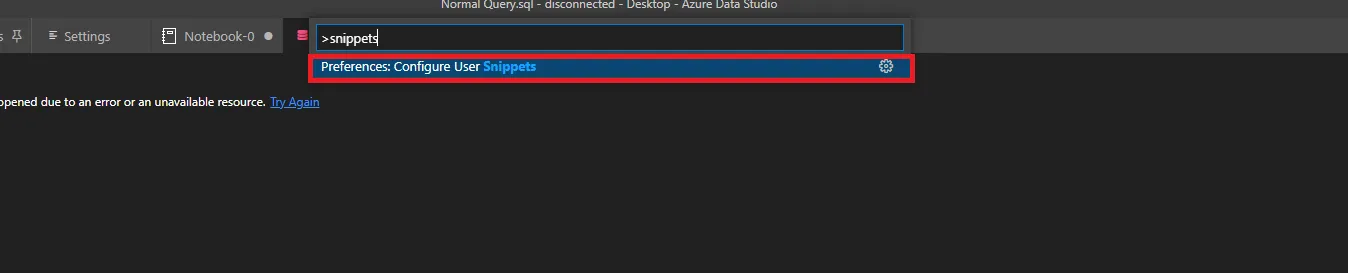
Now type SQL to select the SQL option

You will end up here
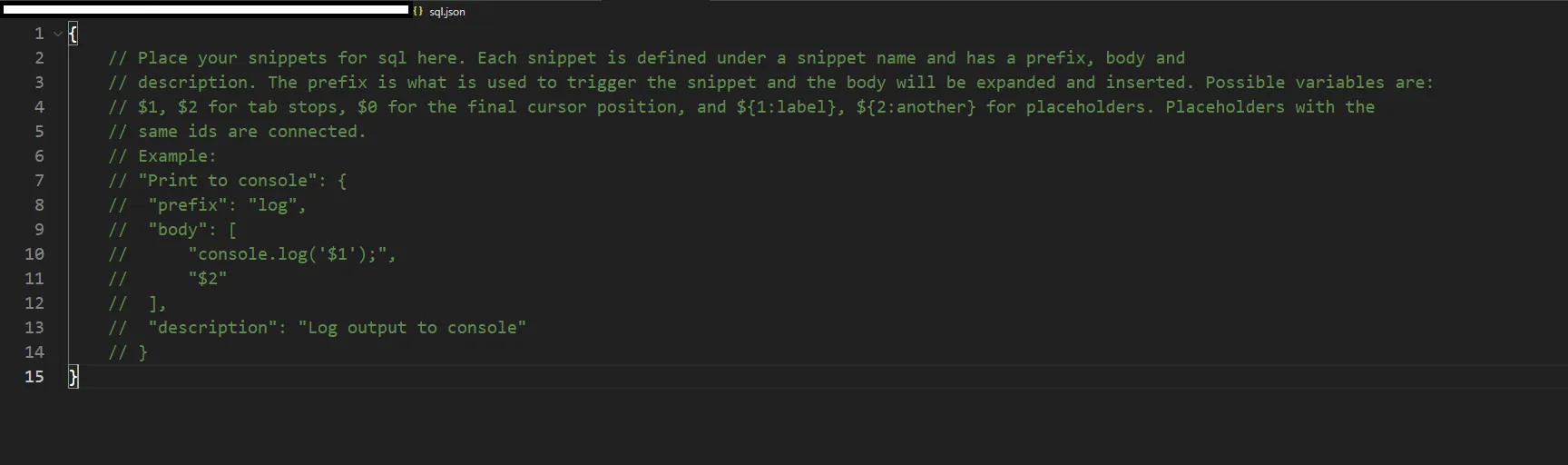
To create a snippet, we need 4 things:
- The name of the snippet – must be unique – This will also be the text displayed in the popup window.
- The prefix – This is what will be the text that you type in to make the replacement. This is also unique and case sensitive.
- The body – This will be the text that will be replaced
- The description – Brief description of what it does. Can be blank but still need it specified for the JSON Object
- Hit Ctrl + S after making changes to save setup
Examples
Let’s create some of the most popular commands SELECT * FROM and SELECT TOP 1000 * with some indentation.
"SELECT * FROM":
 {

	"prefix": "sel",
	"body":"SELECT \n\t* \nFROM\n\t",
	"description": "Basic select formatted"
 }
 ,"SELECT TOP 1000 * FROM":

 {
	"prefix": "sel10",
	"body":"SELECT TOP 1000 \n\t* \nFROM\n\t",
	"description": "Basic select top 1000"
 }
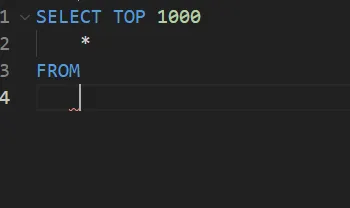
After adding these we will see that when we type out the prefix the option will be available to us. To make the replacement click or press Enter key on the option or hit Escape to use the text as literal. To bring the replacement menu back hit Ctrl + Enter. If you want to undo the replacement hit Ctrl + Z.
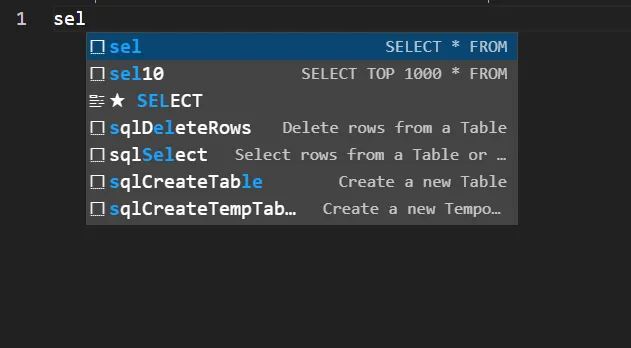
“sel” Replacement
The \n in the body specifies a new line character and the \t a tab
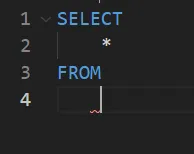
“sel10” Replacement
The \n in the body specifies a new line character and the \t a tab
Query Shortcuts
Scenario
Let’s say you are creating a query with multiple join statements and forgot what you need to join the two tables on. You need to run a SELECT TOP 1000 * on one of the tables and you don’t want to create a new query window to run only that one command well I have a solution for you. You can just highlight the schema and table name and hit a shortcut key to achieve this
TLDR;
SELECT TOP 1000 * on highlighted schema and table name.
Steps
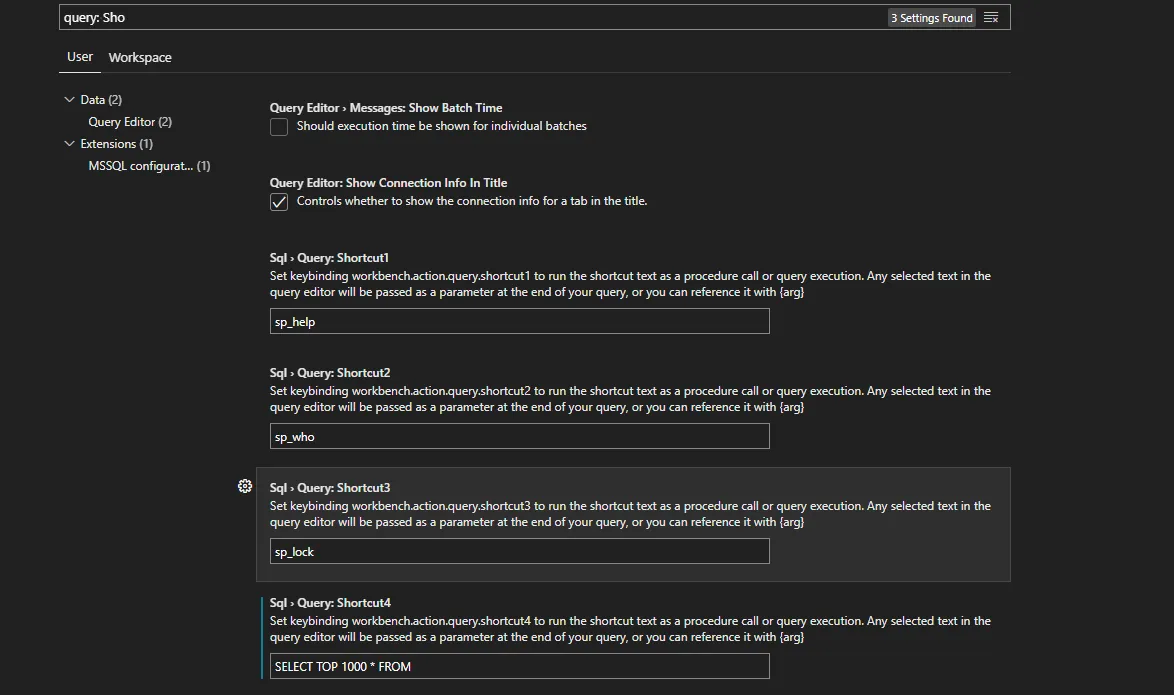
- Go to File > Preferences > Settings or hit Ctrl + , to open settings
- Search for
query: Sho - In the SQL > Query: Shortcut 4 text box, add
SELECT TOP 1000 * FROM - Hit Ctrl + S
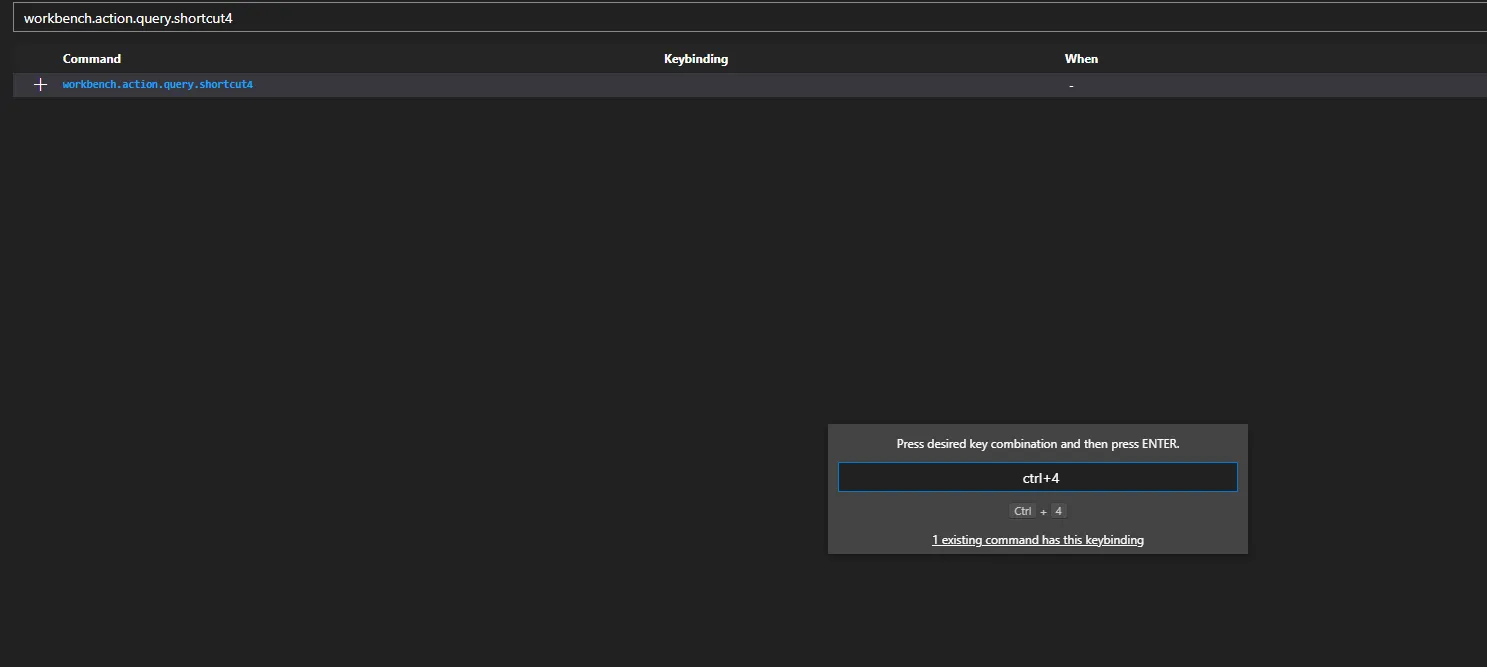
- Go to File > Preferences > Keyboard Shortcuts or hit Ctrl + K then Ctrl + S to open keyboard shortcuts
- In the search bar look for “workbench.action.query.shortcut4” without quotes
- Click on the plus sign next to workbench.action.query.shortcut4

- Hit Ctrl + 4 and enter to assign the shortcut key Ctrl + 4.
- Right-click on the same row and select “Change When Expression”
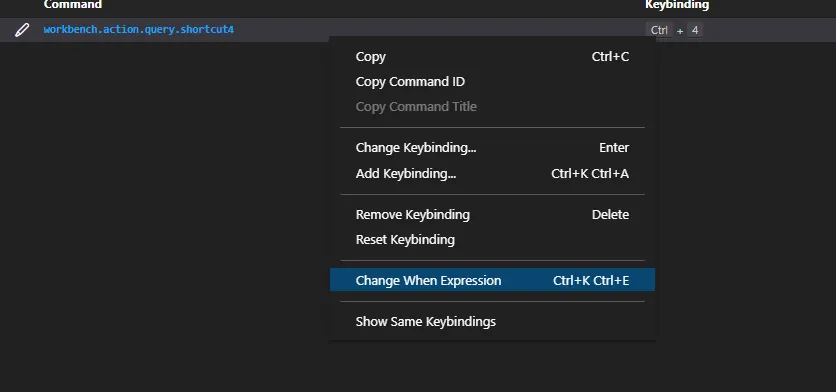
- Type “queryEditorVisible” without quotes inside the text box. This will limit the execution of the shortcut key only to be run when inside a query editor.
Now let’s see if it works
- Hit Ctrl + N to open a new query window
- Select the schema and table name
- Press Ctrl + 4 to perform a SELECT TOP 1000 * FROM on the selected text
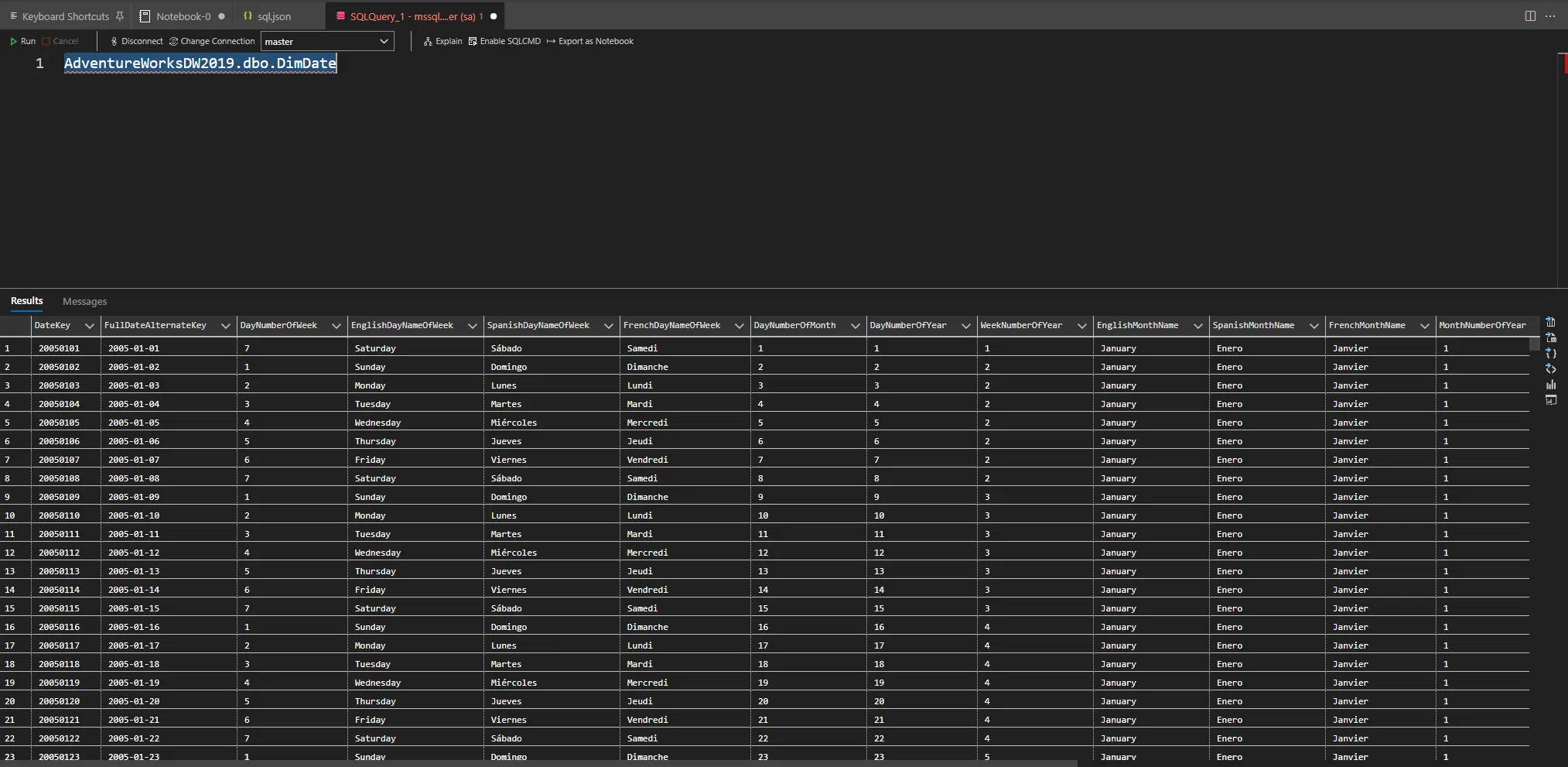
VERY IMPORTANT
If you are selecting data that is from a different database environment you have to specify the fully qualified path in order for the shortcut to work. The shortcut will always execute with the specified database from the drop-down list.
In the screenshot below I’m connected to the master database and there is no schema named “dbo” with a table named “DimDate”.
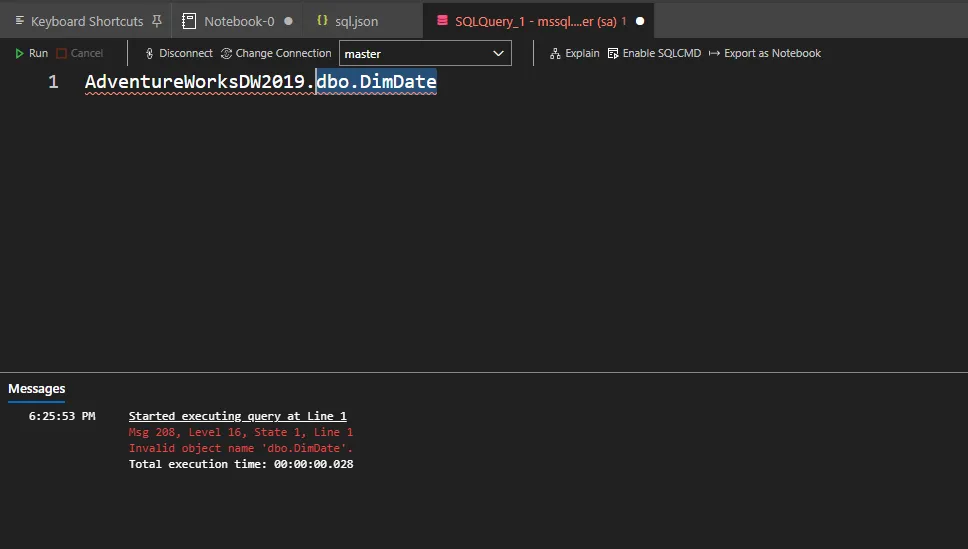
Think of it like this: the command is executed on the highlighted text e.g. SELECT TOP 1000 * FROM dbo.DimDate on the master database. That is why it’s also important that when selecting text to highlight the fully qualified name in order for it to work.